








 Like most options for your computer and the version of internet browser you use, it is all
customizable. Let's talk about the change home page option. This information also pertains to
those that want to add more than one home page.
When you first open your internet browser you are presented with the home page that may be
the default for your browser. You are not however, limited to this choice.
For convenience, when you open Firefox or Internet Explorer, you want two or more tabs to
open when you start your particular browser. Maybe it's productivity related or maybe you are
just an Internet junkie, whatever the reason it's easy to create the set up you want.
1. Open the site you want to set as your new home page or add as a second tab on your home page.
2. Click on the down arrow next to the Home page icon on your Internet Explorer.
3. Click on the "add or change Home page".
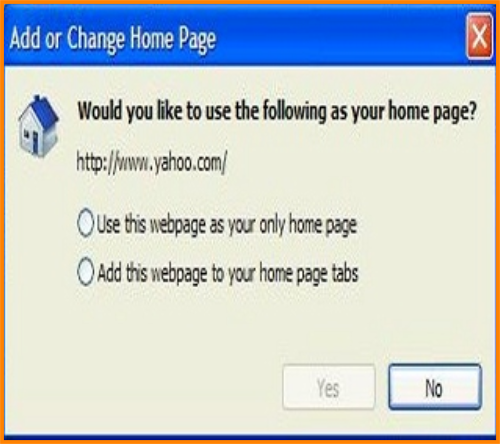
Now a new window will open that will give you the choice to make this new page your Home page or
to add it to your Home page tabs.
4. Click on the radio button in the change home page window to use this as your home page or add
this to your Home page tabs and click yes.
Now when you start Internet Explorer you will have your current Home page and the new one on a
second tab.
You can add more tabs through the add or change home page window to your IE browser startup but
bear in mind the more you have the slower it will be to open Internet Explorer.
Like most options for your computer and the version of internet browser you use, it is all
customizable. Let's talk about the change home page option. This information also pertains to
those that want to add more than one home page.
When you first open your internet browser you are presented with the home page that may be
the default for your browser. You are not however, limited to this choice.
For convenience, when you open Firefox or Internet Explorer, you want two or more tabs to
open when you start your particular browser. Maybe it's productivity related or maybe you are
just an Internet junkie, whatever the reason it's easy to create the set up you want.
1. Open the site you want to set as your new home page or add as a second tab on your home page.
2. Click on the down arrow next to the Home page icon on your Internet Explorer.
3. Click on the "add or change Home page".
Now a new window will open that will give you the choice to make this new page your Home page or
to add it to your Home page tabs.
4. Click on the radio button in the change home page window to use this as your home page or add
this to your Home page tabs and click yes.
Now when you start Internet Explorer you will have your current Home page and the new one on a
second tab.
You can add more tabs through the add or change home page window to your IE browser startup but
bear in mind the more you have the slower it will be to open Internet Explorer.

 1. Go to Tools, then Options from the top menu.
Click on the Main tab.
Here you will see the URL of your current Home page.
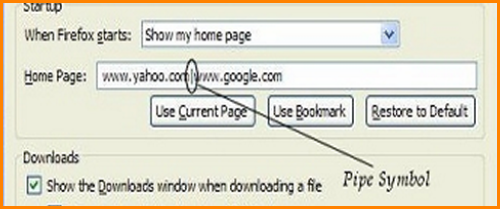
To change your Home page simply type it in to the Home page
address box. Here you can add more tabs as in Internet Explorer but
you must separate addresses by using the pipe symbol or "|". The
pipe symbol is located above the Enter key on the keyboard. It is on
the same key as the backslash but is the uppercase function so don't
forget to use the shift key.
That's it! You can add more addresses to the Home page address
box but bear in mind that too many tabs opening when you start
Firefox will slow down the browser.
That's it for the Firefox version of options for change home page.
1. Go to Tools, then Options from the top menu.
Click on the Main tab.
Here you will see the URL of your current Home page.
To change your Home page simply type it in to the Home page
address box. Here you can add more tabs as in Internet Explorer but
you must separate addresses by using the pipe symbol or "|". The
pipe symbol is located above the Enter key on the keyboard. It is on
the same key as the backslash but is the uppercase function so don't
forget to use the shift key.
That's it! You can add more addresses to the Home page address
box but bear in mind that too many tabs opening when you start
Firefox will slow down the browser.
That's it for the Firefox version of options for change home page.
 Change Hompage by PC Apprentice 2009 - 2017
 Computers make it easier to do a lot of things,
but most of the things they make it easier to do
don't need to be done. - Andy Rooney
Click Image to Enlarge
Click Image to Enlarge
Computers make it easier to do a lot of things,
but most of the things they make it easier to do
don't need to be done. - Andy Rooney
Click Image to Enlarge
Click Image to Enlarge