







 Desktop Power Supply by PC Apprentice 2009 - 2017
 Hardware: the parts of a computer that
can be kicked. ~Jeff Pesis
Hardware: the parts of a computer that
can be kicked. ~Jeff Pesis





 How to install desktop power supplies.
Before you rush out and replace the power supply, you should make sure that you are
reading the symptoms correctly. You don't want to trip up and spend money that you don't
have to.
If you turn the power on and nothing happens
check all connections to the computer first. This
also includes trying another device, lamp, radio,
etc. in the wall socket first. If you find power at
the wall socket and all the cables are attached
correctly and firmly to the computer then it looks
like the power supply is the culprit.
If your computer turns on but shuts itself off
unexpectedly you may be inclined to think that
this is the work of faulty desktop power
supplies. It may be but before you rush out to
get a new one head over to the Maintenance
section and look at "Cleaning your Computer". If
you take the side off of the computer and find out
that you are the proud owner of a dust bunny
ranch then your CPU may be over heating
because of a lack of decent airflow or a problem
with the CPU fan itself.
How to install desktop power supplies.
Before you rush out and replace the power supply, you should make sure that you are
reading the symptoms correctly. You don't want to trip up and spend money that you don't
have to.
If you turn the power on and nothing happens
check all connections to the computer first. This
also includes trying another device, lamp, radio,
etc. in the wall socket first. If you find power at
the wall socket and all the cables are attached
correctly and firmly to the computer then it looks
like the power supply is the culprit.
If your computer turns on but shuts itself off
unexpectedly you may be inclined to think that
this is the work of faulty desktop power
supplies. It may be but before you rush out to
get a new one head over to the Maintenance
section and look at "Cleaning your Computer". If
you take the side off of the computer and find out
that you are the proud owner of a dust bunny
ranch then your CPU may be over heating
because of a lack of decent airflow or a problem
with the CPU fan itself.
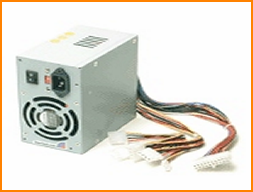 Symptoms of faulty desktop power supplies may be:
* There are strange noises coming from the back side of the computer
where the power cord plugs into the power supply.
* The fan stops working or makes a grinding sound
* Smoke or the smell of burnt plastic comes from the power supply
* Nothing happens when the computer power button is pressed.
Sometimes a light may flash or flash continuously in the front of the
computer or on the back of the power supply.
* The computer turns on for a few seconds and then turns off.
* Computer turns on for a while, but when games or other applications are using the computer steadily, it will turn off or produce a
blue screen.
This last symptom may mean that the devices in your computer are drawing more power than certain desktop power supplies are
designed for. Newer video cards draw more power these days (about 100 watts each in some cases) and you may have to just
upgrade your power supply unit to compensate. Unfortunately, upgrading means buying and installing a new power supply.
If you've followed these tips for narrowing down the problem with your PC and you do need to install a new power supply unit then
read on for installation instructions.
Symptoms of faulty desktop power supplies may be:
* There are strange noises coming from the back side of the computer
where the power cord plugs into the power supply.
* The fan stops working or makes a grinding sound
* Smoke or the smell of burnt plastic comes from the power supply
* Nothing happens when the computer power button is pressed.
Sometimes a light may flash or flash continuously in the front of the
computer or on the back of the power supply.
* The computer turns on for a few seconds and then turns off.
* Computer turns on for a while, but when games or other applications are using the computer steadily, it will turn off or produce a
blue screen.
This last symptom may mean that the devices in your computer are drawing more power than certain desktop power supplies are
designed for. Newer video cards draw more power these days (about 100 watts each in some cases) and you may have to just
upgrade your power supply unit to compensate. Unfortunately, upgrading means buying and installing a new power supply.
If you've followed these tips for narrowing down the problem with your PC and you do need to install a new power supply unit then
read on for installation instructions.
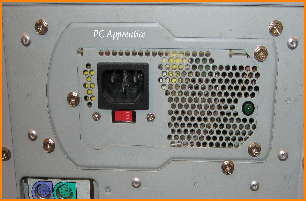 Note: Before attempting any operation involving desktop
power supplies it is highly important that you remove all
cables from the back of your computer.
1. Turn off the computer and remove all cables from the back of the
computer. Lay the computer on its right hand side.
2. Open the computer case. This is normally achieved by removing the left
hand side of the case. This side is normally held in place by two screws
located on the rear of the computer.
3. Desktop power supplies have four screws located on the back of the
computer that correspond to the power supply unit. Remove these but be
aware that you will have to hold the unit up as you take the screws out to
prevent the unit from suddenly falling onto the motherboard.
* At this point you don't have to disconnect all the cables leading from desktop power supplies to the motherboard and peripherals. If you
choose to do so make sure that you make a diagram of where all the cables go.
4. Sit the old power supply on top of the computer.
5. Take the new power supply and install it in your computer fixing it in place with the four screws.
6. Detach cables from the motherboard and peripherals one at a time replacing the connection with one from the new power supply.
* Double check all of your work, make sure all connections are good and secure. Make sure that desktop power supplies are securely
screwed in.
7. Plug in your computer and make sure it turns on and everything is running ok. Then continue by placing the computer's case back onto the
computer.
Note: Before attempting any operation involving desktop
power supplies it is highly important that you remove all
cables from the back of your computer.
1. Turn off the computer and remove all cables from the back of the
computer. Lay the computer on its right hand side.
2. Open the computer case. This is normally achieved by removing the left
hand side of the case. This side is normally held in place by two screws
located on the rear of the computer.
3. Desktop power supplies have four screws located on the back of the
computer that correspond to the power supply unit. Remove these but be
aware that you will have to hold the unit up as you take the screws out to
prevent the unit from suddenly falling onto the motherboard.
* At this point you don't have to disconnect all the cables leading from desktop power supplies to the motherboard and peripherals. If you
choose to do so make sure that you make a diagram of where all the cables go.
4. Sit the old power supply on top of the computer.
5. Take the new power supply and install it in your computer fixing it in place with the four screws.
6. Detach cables from the motherboard and peripherals one at a time replacing the connection with one from the new power supply.
* Double check all of your work, make sure all connections are good and secure. Make sure that desktop power supplies are securely
screwed in.
7. Plug in your computer and make sure it turns on and everything is running ok. Then continue by placing the computer's case back onto the
computer.