











 As much as you depend on your Wifi connection it can suddenly drop for what
may seem no reason. As much as we like to lay the blame at the feet of our internet
providers, it may have nothing to do with them whatsoever.
So before you reach for the phone to talk with tech support here are some
troubleshooting suggestions for you to try first.
You may have already had a working network established in your home. If so start with the more
obvious suspects.
Start by unplugging the wireless router and pressing the reset button which can be found on the back.
Check your manufacturer's documentation for more information on resetting the router.
Make sure that you also reset your modem. For both DSL or cable modems this is accomplished by
removing the power cord from the modem for a minute then reconnecting it.
Check to make sure that the cords to your Wifi router are plugged in correctly. There should be a power
cord connected to the router as well as a connection to the modem. Just because it is a wireless router
does not mean that it will connect to the modem wirelessly. It may seem obvious but starting here can
save time and irritation later.
The distance between the wireless router and the computer may affect the strength of your
wifi signal. This can lead to your wifi connection being dropped.
Try to find a central location for your wireless router. If you have a weak or sporadic signal try
relocating it to various other spots in your home. Use your computer to check the signal
strength as you move the router to different areas. When you have a strong signal strength
this is the optimal location for your router inside your home network.
Signals become weaker as they pass through objects or are reflected by certain surfaces. No
matter what range is promised by the router you choose this measurement will be reduced
by having to deal with obstacles. If problems persist you can improve the signal range by
adding a repeater or a long range antenna.
WiFi connection interference is one of the main reasons for signal degradation.
Microwaves can block wireless signals as can any other device such as a cordless
phone, operating on a 2.4 Ghz frequency that will interfere with your wireless signal.
As a rule of thumb, when setting up your network you should position your Wifi
connection device between 3 to 6 feet away. Obviously the further away the better.
It is possible that you are fighting against another Wifi connection in your area. Other
networks can block your signal as much as a wireless phone can. If two devices are running
on the same channel it can impair your signals strength.
Wifi devices in the USA support as many as 11 channels. You can change your signal to
another channel and see if you get a signal performance boost to negate your connection
problems.
To change the channel you will need to open your web browser and type in the IP address
into the web browser address bar.
As much as you depend on your Wifi connection it can suddenly drop for what
may seem no reason. As much as we like to lay the blame at the feet of our internet
providers, it may have nothing to do with them whatsoever.
So before you reach for the phone to talk with tech support here are some
troubleshooting suggestions for you to try first.
You may have already had a working network established in your home. If so start with the more
obvious suspects.
Start by unplugging the wireless router and pressing the reset button which can be found on the back.
Check your manufacturer's documentation for more information on resetting the router.
Make sure that you also reset your modem. For both DSL or cable modems this is accomplished by
removing the power cord from the modem for a minute then reconnecting it.
Check to make sure that the cords to your Wifi router are plugged in correctly. There should be a power
cord connected to the router as well as a connection to the modem. Just because it is a wireless router
does not mean that it will connect to the modem wirelessly. It may seem obvious but starting here can
save time and irritation later.
The distance between the wireless router and the computer may affect the strength of your
wifi signal. This can lead to your wifi connection being dropped.
Try to find a central location for your wireless router. If you have a weak or sporadic signal try
relocating it to various other spots in your home. Use your computer to check the signal
strength as you move the router to different areas. When you have a strong signal strength
this is the optimal location for your router inside your home network.
Signals become weaker as they pass through objects or are reflected by certain surfaces. No
matter what range is promised by the router you choose this measurement will be reduced
by having to deal with obstacles. If problems persist you can improve the signal range by
adding a repeater or a long range antenna.
WiFi connection interference is one of the main reasons for signal degradation.
Microwaves can block wireless signals as can any other device such as a cordless
phone, operating on a 2.4 Ghz frequency that will interfere with your wireless signal.
As a rule of thumb, when setting up your network you should position your Wifi
connection device between 3 to 6 feet away. Obviously the further away the better.
It is possible that you are fighting against another Wifi connection in your area. Other
networks can block your signal as much as a wireless phone can. If two devices are running
on the same channel it can impair your signals strength.
Wifi devices in the USA support as many as 11 channels. You can change your signal to
another channel and see if you get a signal performance boost to negate your connection
problems.
To change the channel you will need to open your web browser and type in the IP address
into the web browser address bar.
 The IP address is usually 192.168.1.1 but make sure to read the manufacturer's documentation as it may
be different from the example shown.
The IP address is usually 192.168.1.1 but make sure to read the manufacturer's documentation as it may
be different from the example shown.
 Click Image to Enlarge
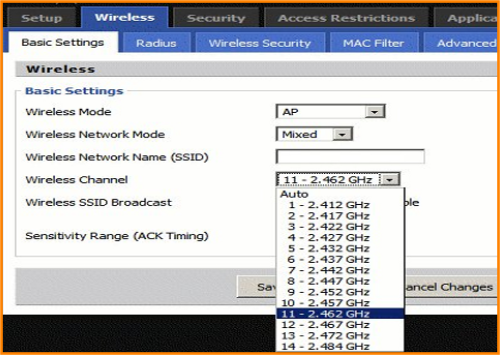
Click on the wireless tab to access the wireless setup
options and in this instance the option to change channels
is on the basic settings page. You can see by the pull
down menu in the example that each channel option
changes the frequency by a small amount.
Some Wifi connection setup pages will have a check box
for choosing the channel automatically. You may have to
uncheck this box or options to change the channel will be
grayed out.
You can change the channel then test the connection on
your laptop. Experiment with each one to find which
channel gives you the best Wifi connection signal.
It's always very important to secure a wireless connection.
You can find more information about that here: Secure
Wireless Network
Click Image to Enlarge
Click on the wireless tab to access the wireless setup
options and in this instance the option to change channels
is on the basic settings page. You can see by the pull
down menu in the example that each channel option
changes the frequency by a small amount.
Some Wifi connection setup pages will have a check box
for choosing the channel automatically. You may have to
uncheck this box or options to change the channel will be
grayed out.
You can change the channel then test the connection on
your laptop. Experiment with each one to find which
channel gives you the best Wifi connection signal.
It's always very important to secure a wireless connection.
You can find more information about that here: Secure
Wireless Network
 WiFi Connection by PC Apprentice 2009 - 2017
 The Internet is a great way to get on the
net.
- Senator Bob Dole
The Internet is a great way to get on the
net.
- Senator Bob Dole